Hello, World
The instructions below will walk you through how to launch a simple "Hello, world" workflow using the Fuzzball workflow catalog. The workflow catalog will help you generate, validate, and submit a "Hello, world" Fuzzfile. By default, this workflow uses a public Alpine container from Dockerhub to print the host where the job is located. This simple workflow will help familiarize you with the Fuzzball web UI and CLI.
This workflow can be run through the web UI or the CLI.
Please select either the web UI or CLI tab to see the appropriate instructions for your environment.
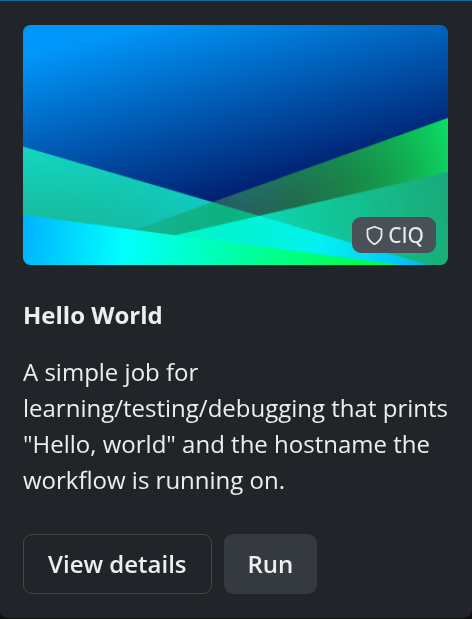
If you click "Workflow Catalog", you will see a page of workflow templates you use to create fuzzfiles and launch workflows. Find the "Hello World (example)" tile with the CIQ badge and click "Run".
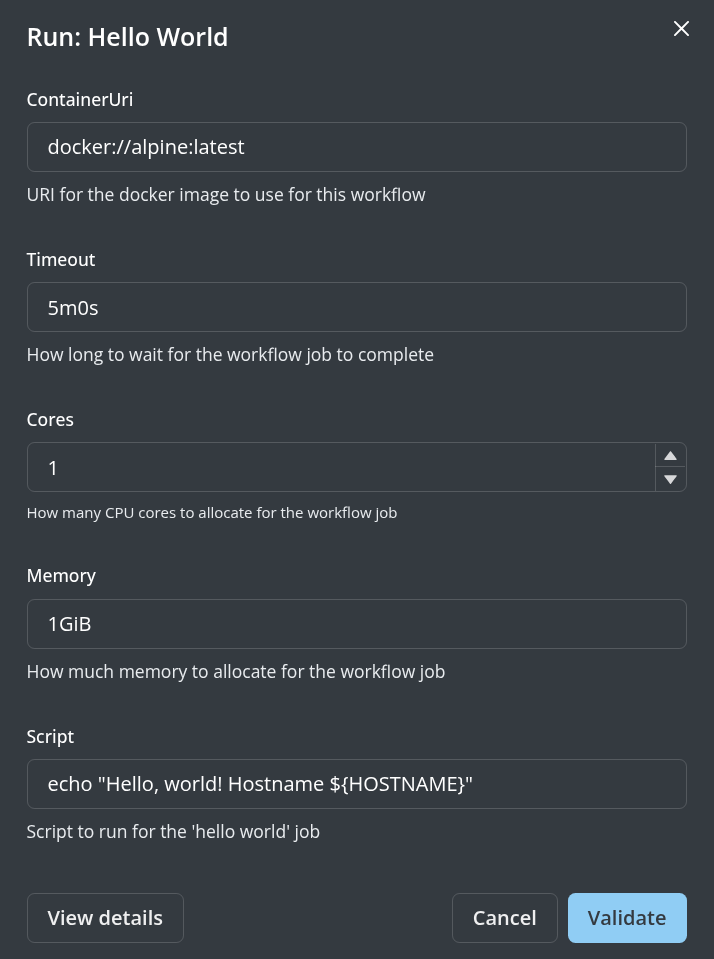
You will be prompted with a pop-up with template parameters which you can modify. If you'd like to accept the default values, you can click "Validate" which will validate the Fuzzfile generated using the input specified.
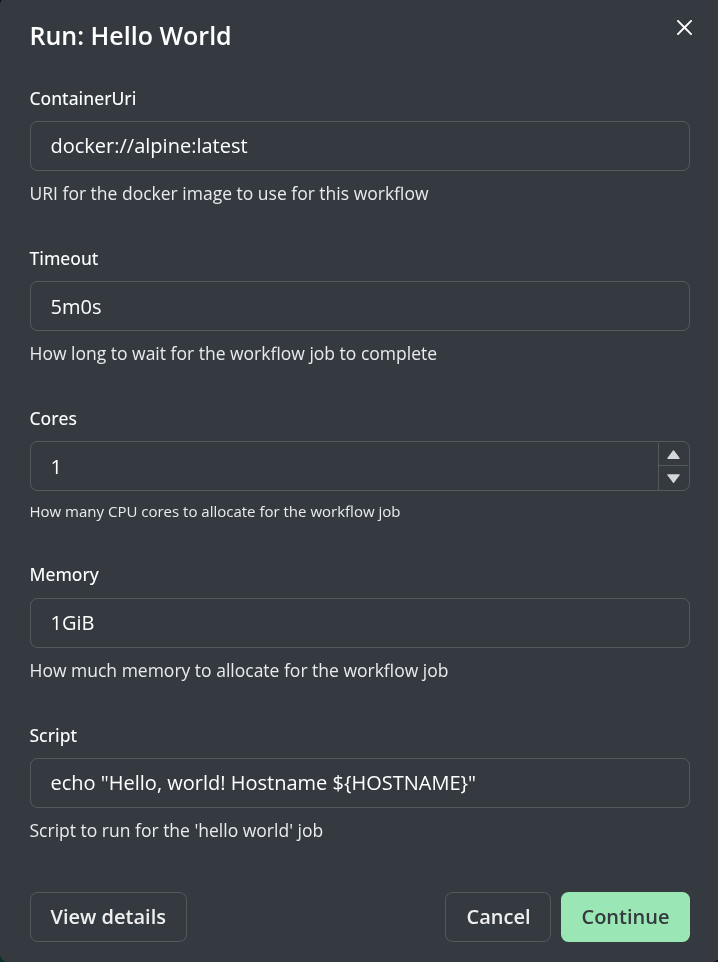
You can proceed to launching the job by clicking "Continue".
You will be prompted to provide an optional descriptive name for your workflow.
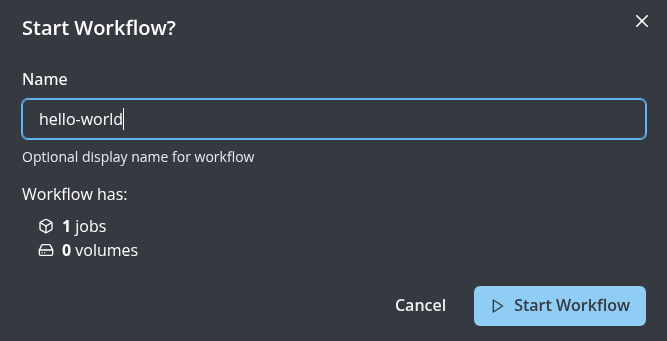
Now you can click on "Start Workflow" in the lower right corner of the dialog box and your workflow will be submitted. If you click "Go to Status" you can view the workflow status page. The screenshot below shows the status page for a hello world workflow submission.
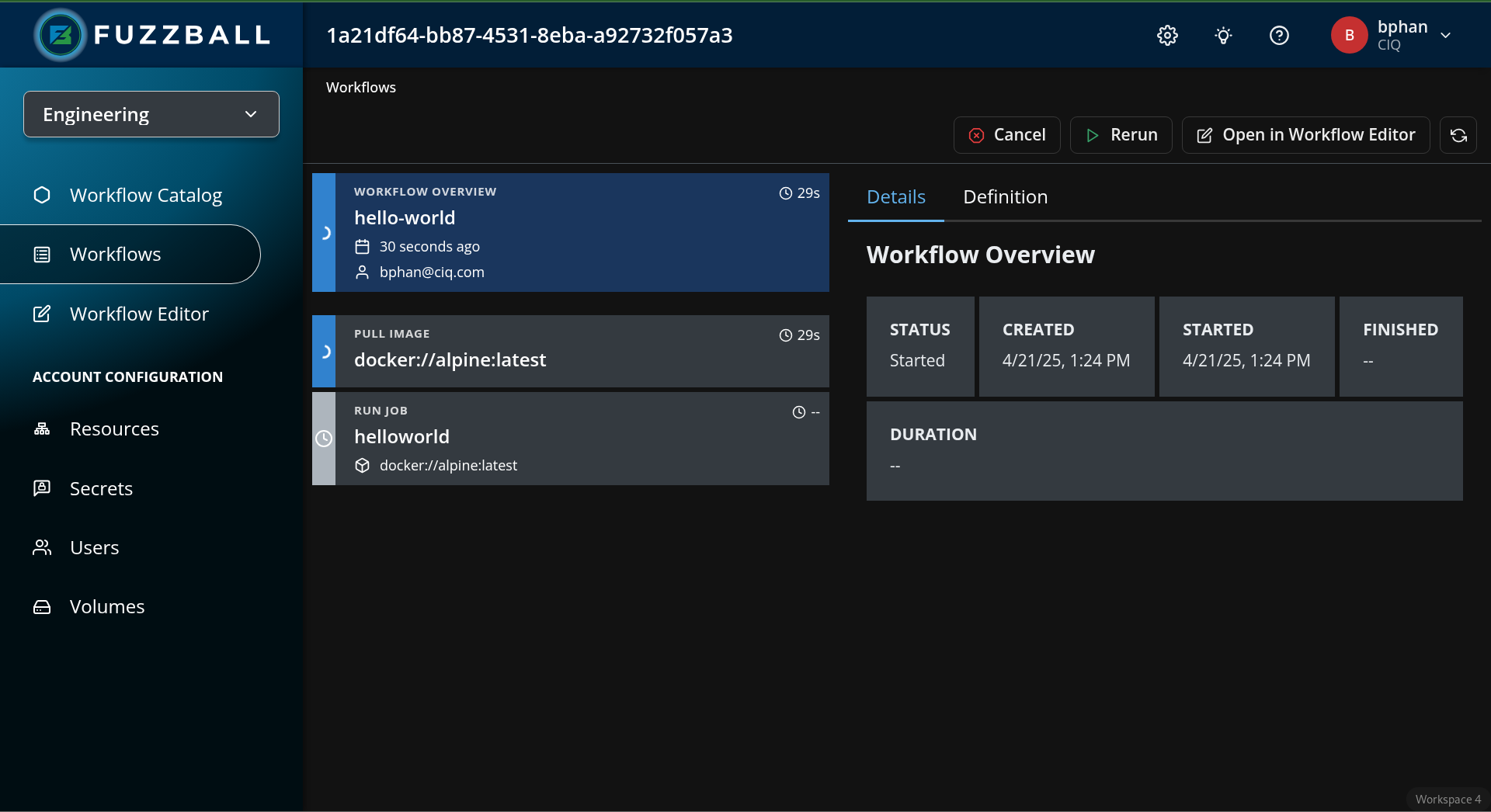
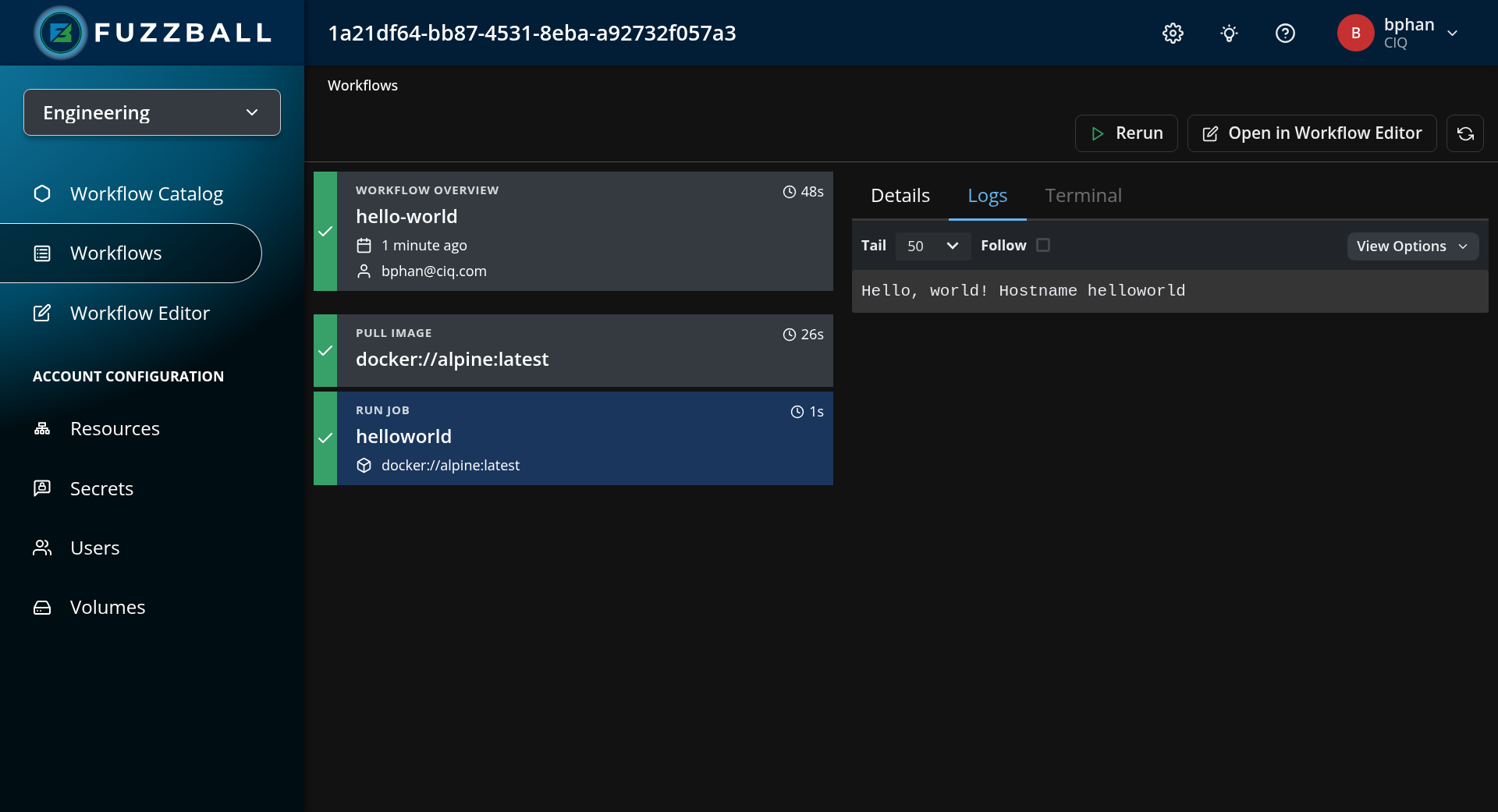
To retrieve logs produced by this workflow, select the helloworld job within the workflow, and
click the "Logs" option on the right.
To run this workflow through the CLI you will need access to the Fuzzball CLI. You can install it using the Fuzzball CLI installation instructions.
First, you can create a values file values.yaml to populate the Hello World workflow template
using the command below. You can modify the parameters to your desired values or use the defaults
below.
$ cat >values.yaml<<EOF
values:
  - name: ContainerUri
    display_name: URI for the docker image to use for this workflow
    string_value: docker://alpine:latest
  - name: Timeout
    display_name: How long to wait for the workflow job to complete
    string_value: 5m0s
  - name: Cores
    display_name: How many CPU cores to allocate for the workflow job
    uint_value: 1
  - name: Memory
    display_name: How much memory to allocate for the workflow job
    string_value: 1GiB
  - name: Script
    display_name: Script to run for the 'hello world' job
    string_value: echo "Hello, world! Hostname ${HOSTNAME}"
EOF
Next, you will need to find the workflow template ID. The command below lists workflow templates
provided by CIQ. The ID of the Hello World workflow template shown in the output below is
00000001-aaaa-bbbb-cccc-dddddddddddd.
$ fuzzball workflow-template list -f "(provider: \"CIQ\")"
NAME                           | ID                                   | OWNER    | PROVIDER | UPDATETIME            | DISABLED
Hello World                    | 00000001-aaaa-bbbb-cccc-dddddddddddd | PROVIDER | CIQ      | 2025-03-06 05:00:00PM | false
Jupyter Notebook               | 00000002-aaaa-bbbb-cccc-dddddddddddd | PROVIDER | CIQ      | 2025-03-06 05:00:00PM | false
Jupyter Notebook (VDI)         | 00000003-aaaa-bbbb-cccc-dddddddddddd | PROVIDER | CIQ      | 2025-03-06 05:00:00PM | false
ParaView                       | 00000004-aaaa-bbbb-cccc-dddddddddddd | PROVIDER | CIQ      | 2025-03-06 05:00:00PM | false
Xfce Desktop Environment       | 00000005-aaaa-bbbb-cccc-dddddddddddd | PROVIDER | CIQ      | 2025-03-06 05:00:00PM | false
LAMMPS (CPU)                   | 00000006-aaaa-bbbb-cccc-dddddddddddd | PROVIDER | CIQ      | 2025-03-06 05:00:00PM | false
LAMMPS (GPU)                   | 00000007-aaaa-bbbb-cccc-dddddddddddd | PROVIDER | CIQ      | 2025-03-06 05:00:00PM | false
BLAST                          | 00000008-aaaa-bbbb-cccc-dddddddddddd | PROVIDER | CIQ      | 2025-03-06 05:00:00PM | false
Stable Diffusion Text to Image | 00000009-aaaa-bbbb-cccc-dddddddddddd | PROVIDER | CIQ      | 2025-03-06 05:00:00PM | false
You can generate a Fuzzfile using the workflow ID and the values file (values.yaml) we created in the first step using the command below.
$ fuzzball workflow-template render-template 00000001-aaaa-bbbb-cccc-dddddddddddd values.yaml > hello-world.fz
You can start start this workflow using the CLI by running the following command:
$ fuzzball workflow start hello-world.fz
Workflow "065e8665-f025-4247-8783-d4abdb7723be" started.
You can monitor the workflow's status by running the following command:
$ fuzzball workflow describe 065e8665-f025-4247-8783-d4abdb7723be
Name:      hello-world.fz
Email:     bphan@ciq.co
UserId:    e554e134-bd2d-455b-896e-bc24d8d9f81e
Status:    STAGE_STATUS_FINISHED
Created:   2024-06-14 04:11:03PM
Started:   2024-06-14 04:11:03PM
Finished:  2024-06-14 04:11:43PM
Error:


Stages:
KIND     | STATUS   | NAME                                     | STARTED               | FINISHED
Workflow | Finished | 065e8665-f025-4247-8783-d4abdb7723be     | 2024-06-14 04:11:03PM | 2024-06-14 04:11:43PM
Image    | Finished | docker://docker.io/library/alpine:latest | 2024-06-14 04:11:04PM | 2024-06-14 04:11:22PM
Job      | Finished | helloworld                               | 2024-06-14 04:11:40PM | 2024-06-14 04:11:42PM
You can view outputs logged by the workflow, by executing the following command:
$ fuzzball workflow log 065e8665-f025-4247-8783-d4abdb7723be hello-world
Hello, world! Hostname helloworld