Adding Users to Organizations
New users are created by adding them to an organization using either the web UI or the CLI. Follow the instructions for your preferred method below.
Please select either the web UI or CLI tab to see the appropriate instructions for your environment.
Prerequisites
Before adding users via the web UI, ensure you have:
- Organization owner permissions
- The new user's email address
Adding New Users to the Organization
-
Log into your Fuzzball UI as an organization owner
-
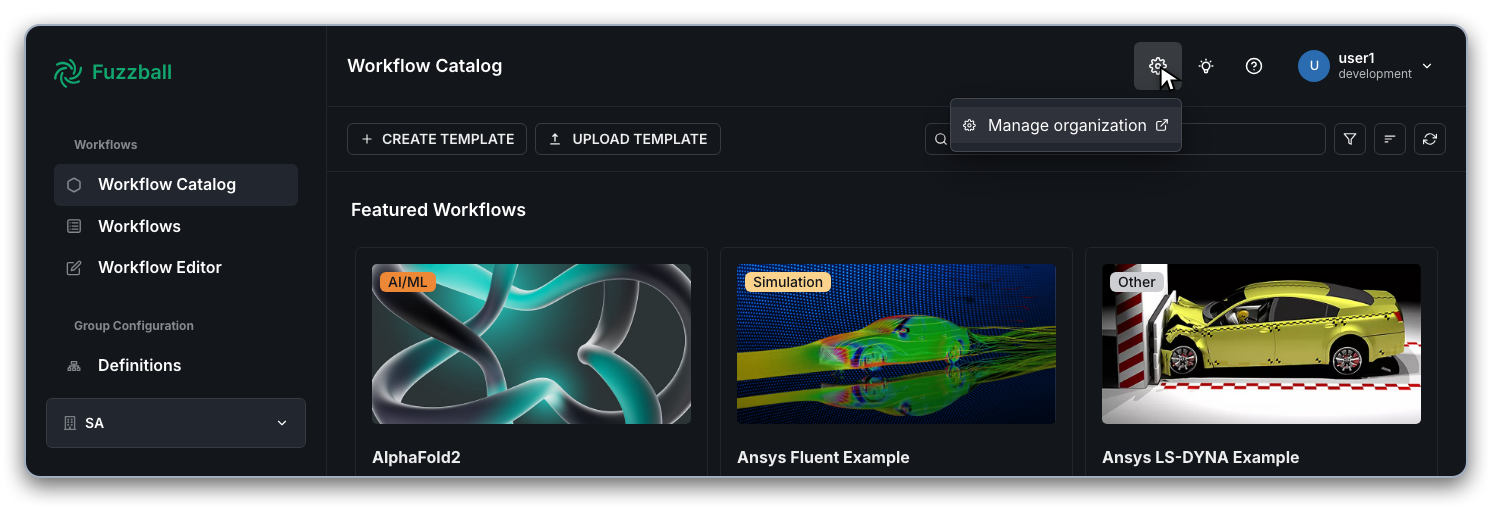
Click on the Gear icon in the top right of the dashboard header and select Manage organization
-
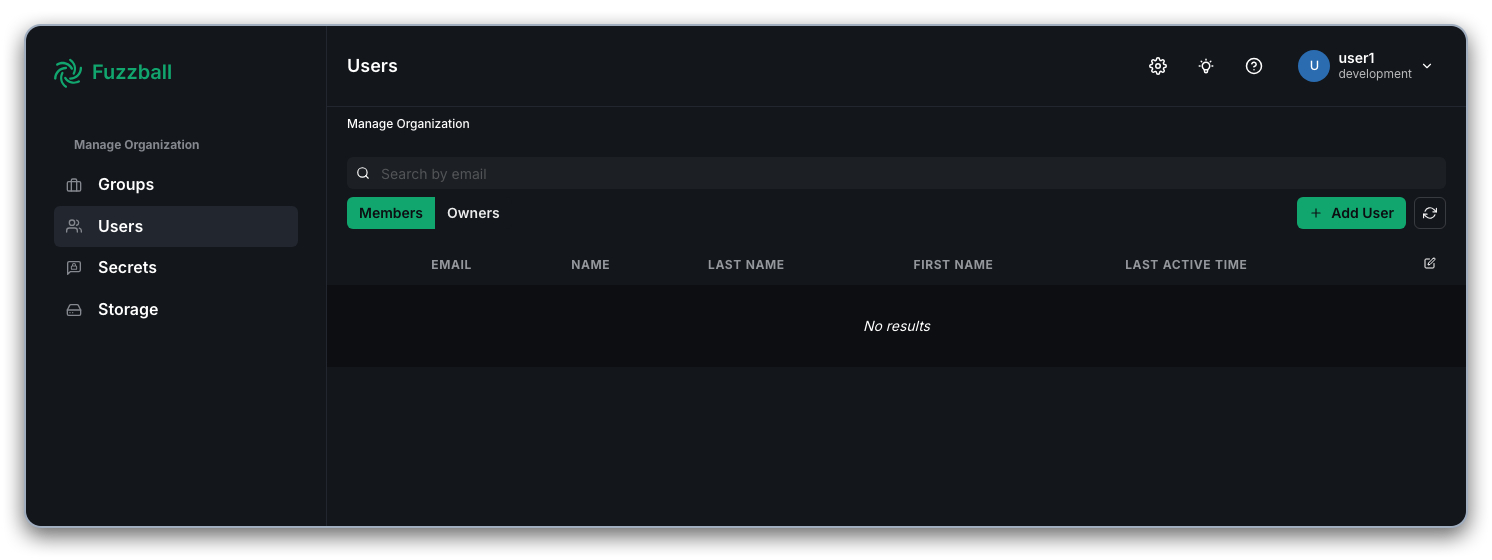
Navigate to the Users section in the left toolbar
-
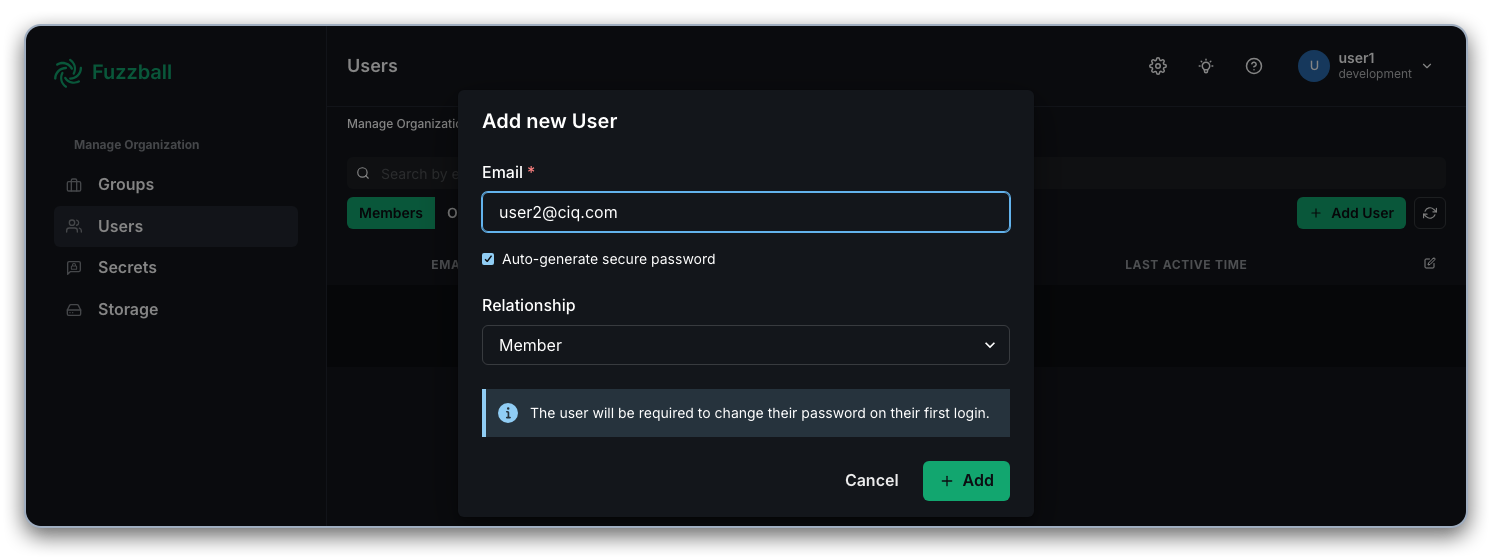
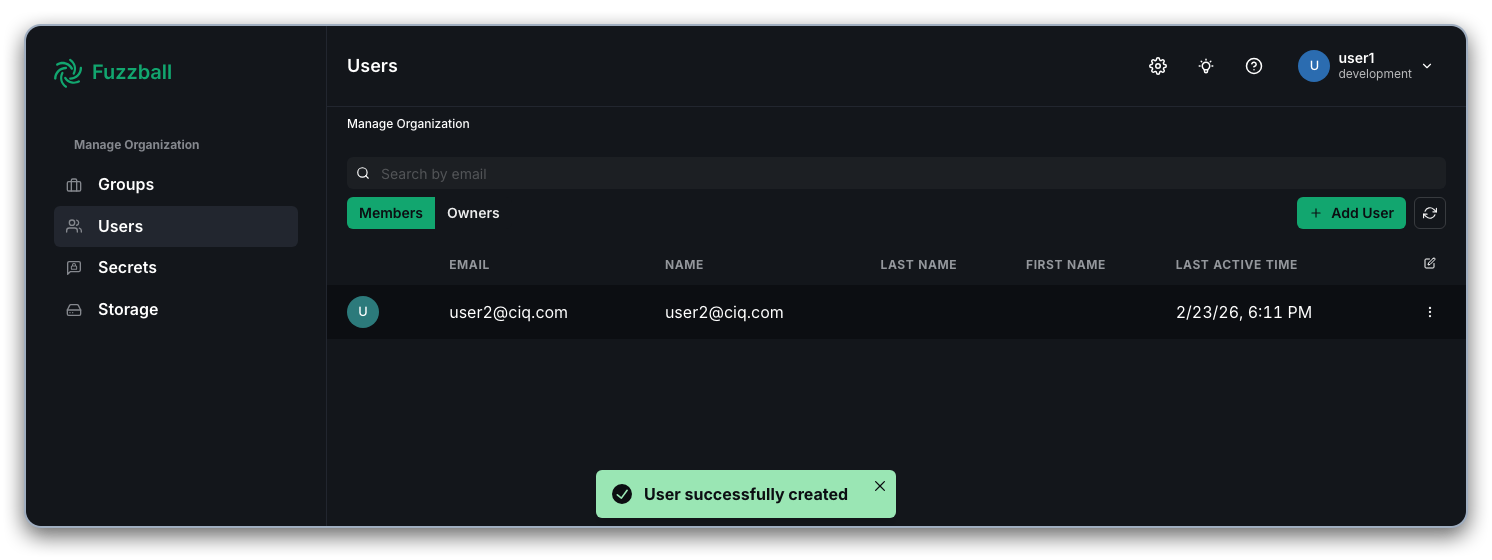
Click on Add User, provide the new user's email address, and select the Member relationship for regular users (or Owner for organization owners). You can choose to have Fuzzball generate a password automatically or provide one. You can optionally require the user to change their password on first login. If your organization uses an upstream identity provider, the account will be connected to that identity instead. Otherwise the account will be connected to the identity.
-
Click Add to complete adding the new user to the organization. If you had Fuzzball auto-generate a temporary password, it will be shown in a one-time dialog.
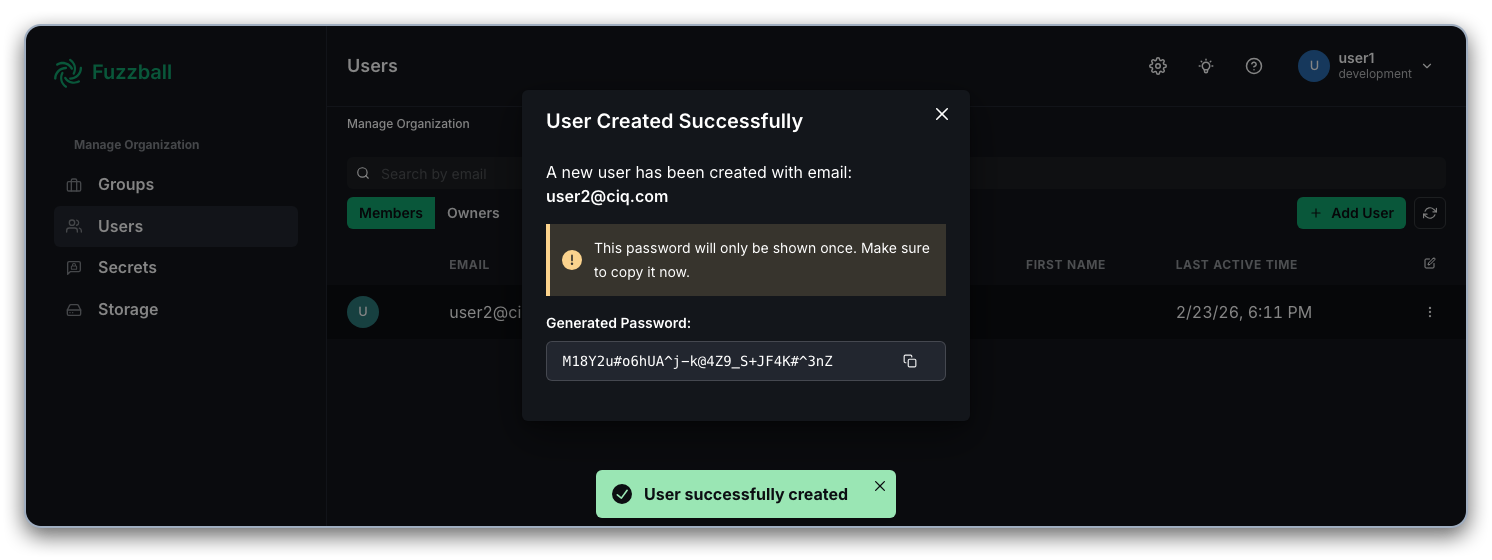
Once the addition is complete, the user will appear in the Member or Owner list, depending on your choice in step 4.
Prerequisites
- Fuzzball CLI installed
- Active CLI context for a Fuzzball user configured as an owner for the Fuzzball organization to be managed.
Adding New Organization Members
New users can be added as organization members using the Fuzzball organization add-member subcommand. The example below adds user user2@ciq.com as an
organization member. By default a temporary password for the new user will
be created and shown in the output:
$ fuzzball organization add-member user2@ciq.com
Member added:
  ID:    78be52a7-3702-48d4-ad56-ecf8ac76a727
  Email: user2@ciq.com

⚠️  GENERATED PASSWORD (save this - it won't be shown again):
  riJ@Kb#2#KpV8g*1S7_Q_4^MLp8I^N52
Alternatively, a password can be provided by the organization owner:
$ read -rs TEMP_PASSWORD  ## read a password into a variable without echoing to screen
...type password and hit enter...

$ fuzzball organization add-member --password "$TEMP_PASSWORD" user2@ciq.com
Member added:
  ID:    78be52a7-3702-48d4-ad56-ecf8ac76a727
  Email: user2@ciq.com
Adding New Organization Owners
New users can be added as organization owners using the Fuzzball organization add-owner subcommand. The example below adds user user3@ciq.com as an
organization owner.
$ fuzzball organization add-owner user3@ciq.com
Owner added:
  ID:    41d8cf04-c33a-4015-9fe0-90b9682035bc
  Email: user3@ciq.com

⚠️  GENERATED PASSWORD (save this - it won't be shown again):
  IUr7h-2G@uv#*7^A9EjV0e+24Dif#-e3
User Login and Password Setup
After adding a new user to your organization, share their password with them. When users log in
for the first time they will either connect their Fuzzball account to their account in the central
identity management system or log in with the provided password. If you required a password change
(via --require-update-password in the CLI or the equivalent web UI option), they will be
prompted to set a new password on first login. For more information, see the
Managing Passwords guide.
Users and Groups
After creating users and adding them to your organization as described above, you add them to specific groups to allow them access to group level resources. The group management guide describes how to manage group membership for your Fuzzball users.
Permissions
For more information on organization owner and member permissions, please refer to the roles and permissions page.