Updating Existing Secrets
If you need to change one of your secrets you can (and should) simply update it so that you can continue to use your existing Fuzzfiles without updating them.
Please select either the web UI or CLI tab to see the appropriate instructions for your environment.
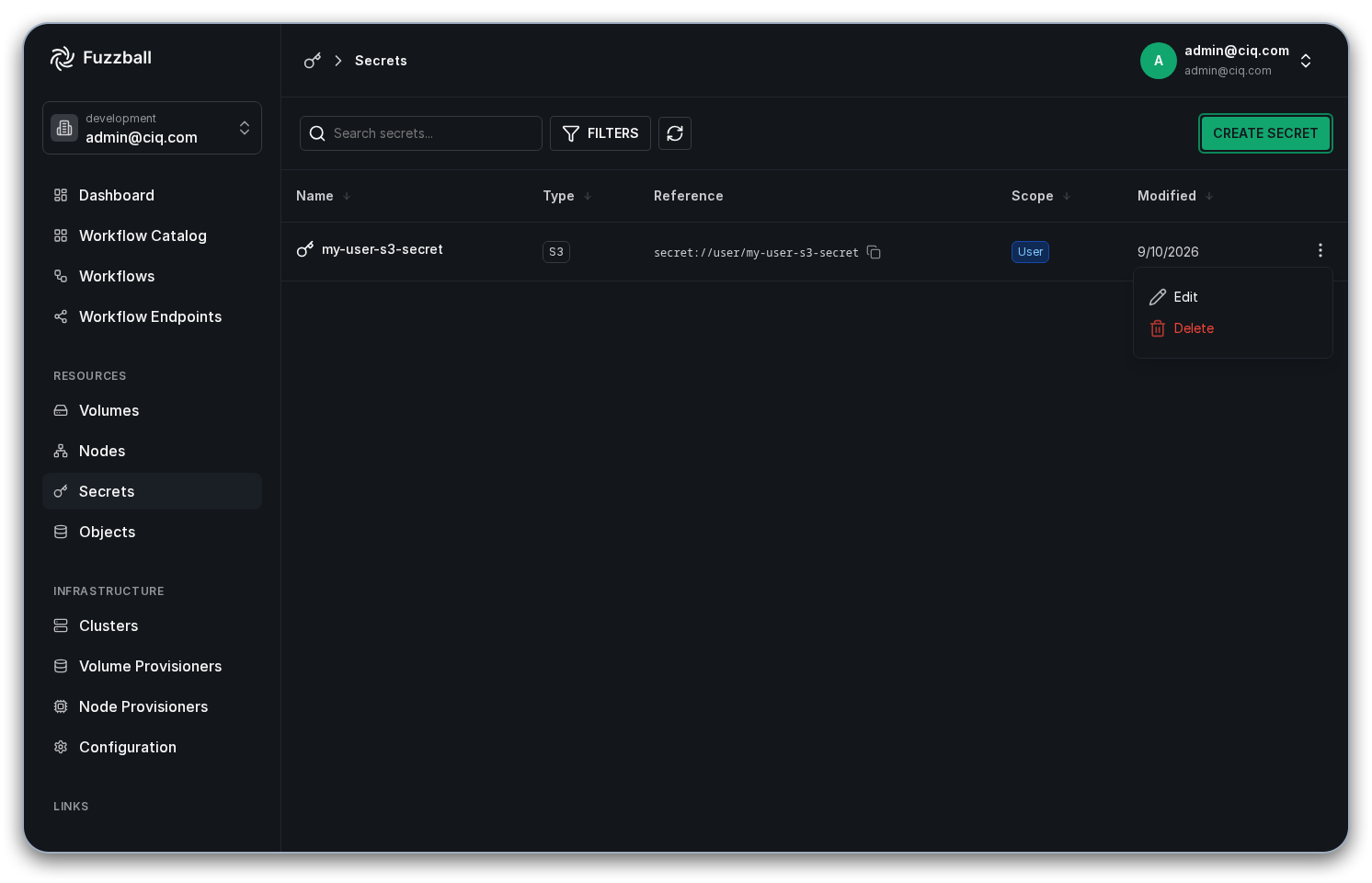
You can update a secret by first navigating to the secrets page, clicking the ellipsis at the end of
the secret's row, and choosing Edit. In the example below, we will be editing secret
my-user-s3-secret.
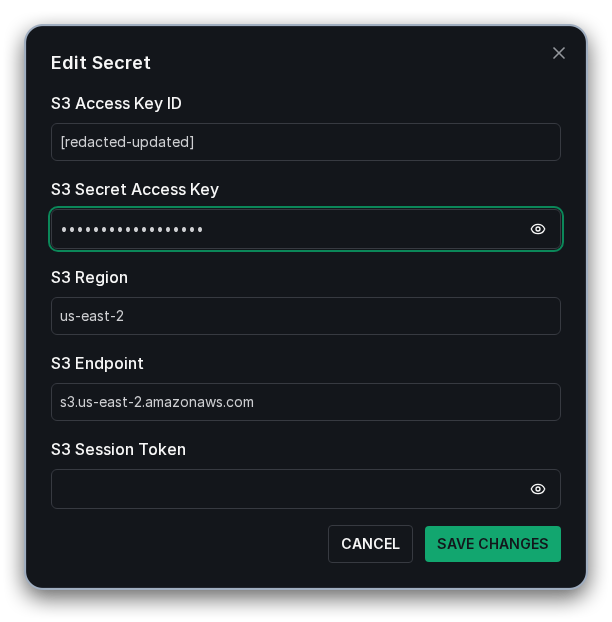
The Edit Secret dialog opens with the secret's credential fields. Only the credentials can be changed here -- a secret's name, type, and scope are fixed once it is created. In the example below, we are updating the S3 access key ID and secret access key. When you are done editing the values, click Save Changes in the bottom right corner of the dialog.
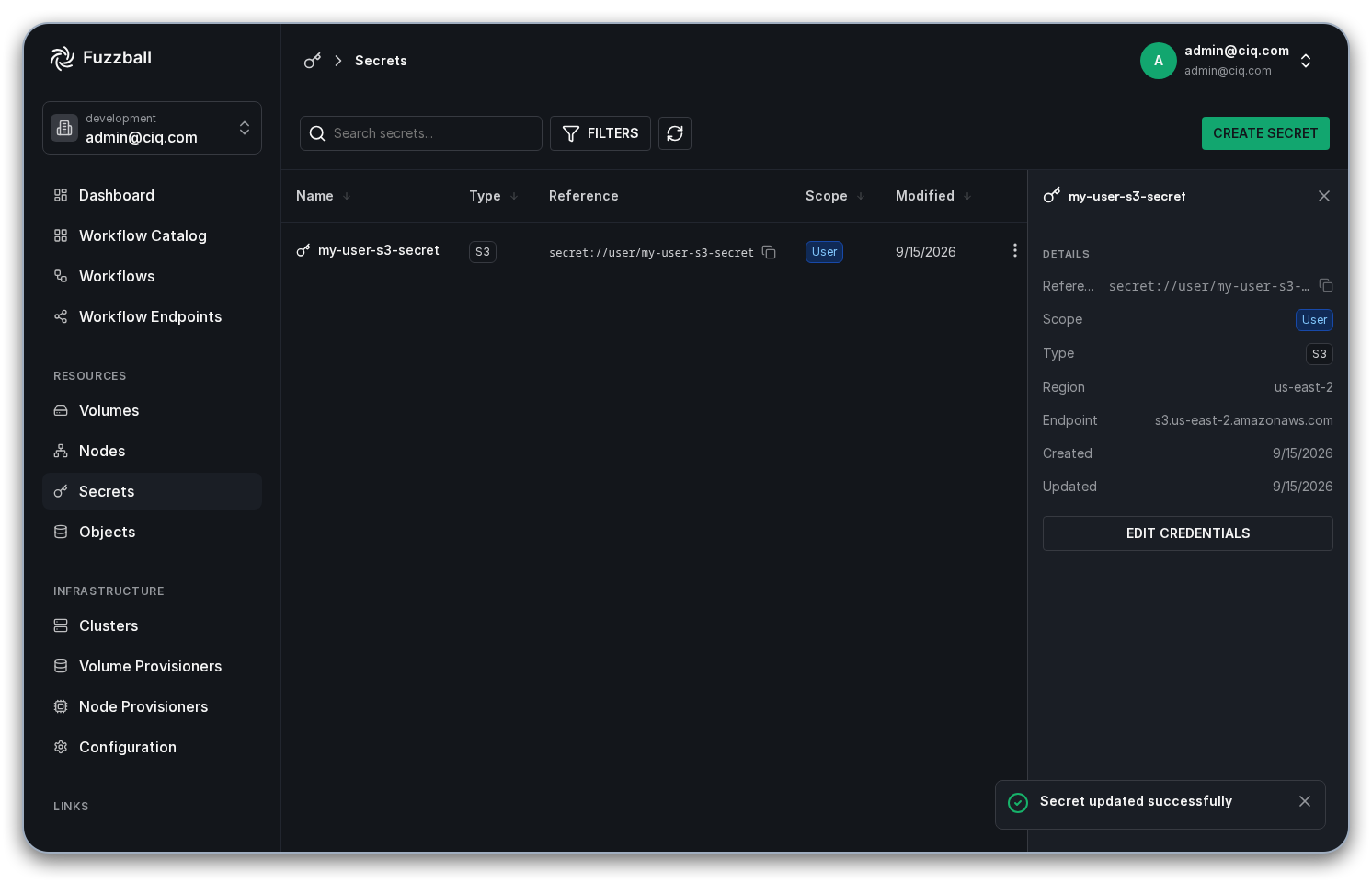
After saving, a Secret updated successfully notification appears and the Modified column of
the secret you just edited shows the current date. The image below shows secret my-user-s3-secret
immediately after its credentials were saved.
Here is the procedure to update a secret assuming you already have an updated secret YAML file:
$ fuzzball secret update -f s3-secret-updated.yaml 304945fc-e915-4359-8adc-1f59d3c1de92
Updated secret: 304945fc-e915-4359-8adc-1f59d3c1de92

$ fuzzball secret list
ID                                   | TYPE | REFERENCE
304945fc-e915-4359-8adc-1f59d3c1de92   s3     secret://user/my-user-s3-secret
f0bea820-c2a2-4a2f-b738-649f8a494150   s3     secret://group/my-user-s3-secret
To confirm the update by inspecting the timestamp, use fuzzball secret show <id> or fuzzball secret list -o yaml:
$ fuzzball secret show 304945fc-e915-4359-8adc-1f59d3c1de92
Id:              304945fc-e915-4359-8adc-1f59d3c1de92
Name:            my-user-s3-secret
Reference:       secret://user/my-user-s3-secret
Type:            s3

Region:          us-west-2
Endpoint:        https://s3.us-west-2.amazonaws.com