Using GPUs with Fuzzball
Fuzzball intelligently passes GPU resources from the host through to the containers that support your jobs. Once an administrator has properly added and configured resources that include GPUs, you can access them simply by specifying them in your Workflow.
Observe the following Fuzzfile:
Note that the gpu-check job in this workflow is based on the official Rocky Linux (v9) container
on Docker
Hub.
This container does not have a GPU driver or any NVIDIA related software installed. However, the
Fuzzfile specifies that this job should run the program nvidia-smi to check the status of any GPUs
that are present.
The resources section has a field devices that allows you to specify that the job should use
GPUs. Since our administrator has configured GPUs for use with nvidia.com/gpu, we can specify that
we need to use one. Fuzzball will cause all of the driver-related software to be available in the
container.
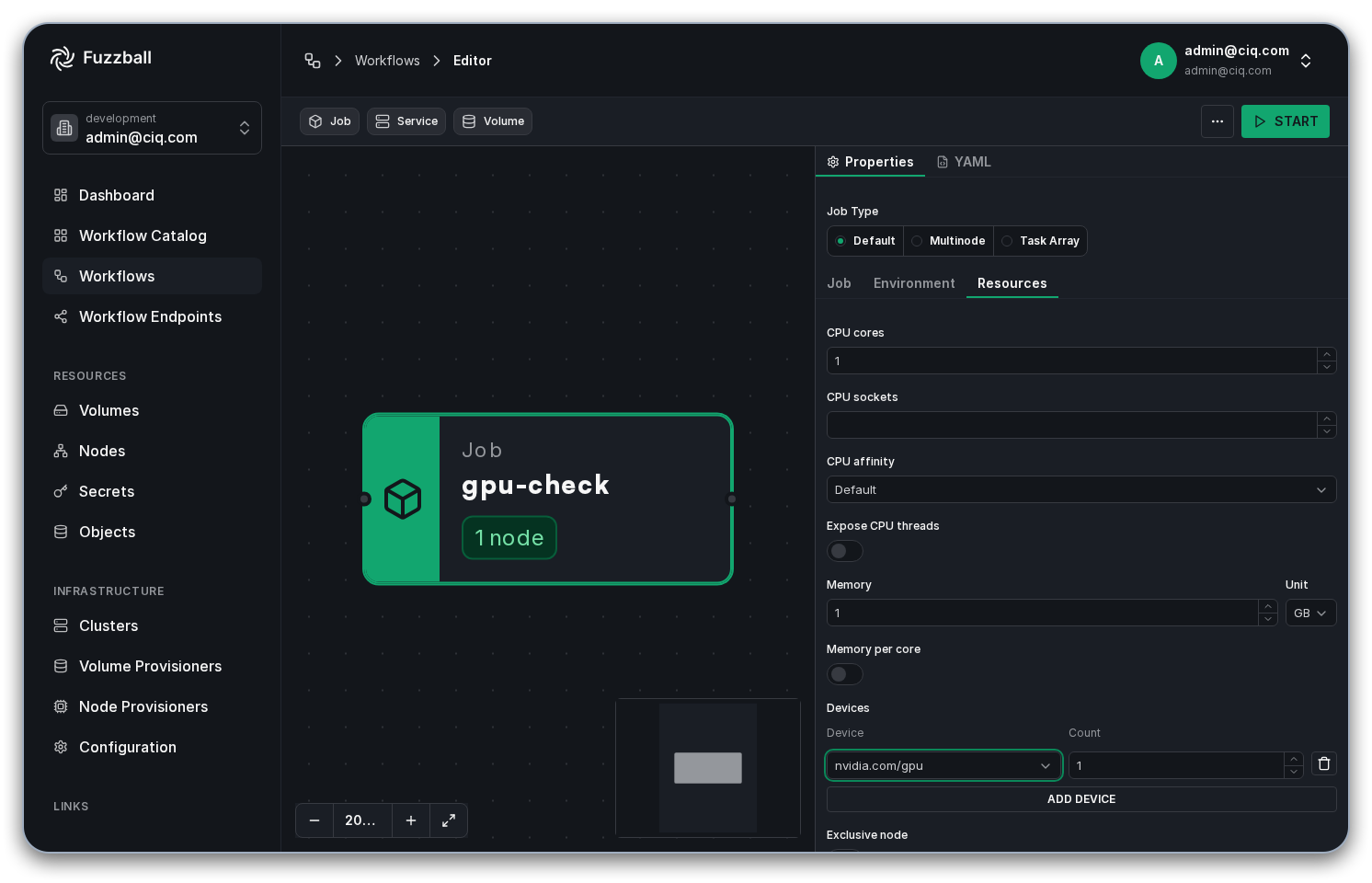
If you are using the workflow editor in the web UI to create your Fuzzfile, select the job, open the
Resources tab of the Properties panel on the right, and click ADD DEVICE. That adds a
Device / Count pair; choose the device from the Device drop down and set how many the
job needs. Once again, in the example configuration, the nvidia.com/gpu device is the appropriate
one to add a GPU to our job.
After submitting the workflow, note that the nvidia-smi command has no trouble completing even
though the Rocky Linux container has no NVIDIA-related software.
Thu Feb 12 18:13:24 2026
+-----------------------------------------------------------------------------------------+
| NVIDIA-SMI 590.44.01              Driver Version: 590.44.01      CUDA Version: 13.1     |
+-----------------------------------------+------------------------+----------------------+
| GPU  Name                 Persistence-M | Bus-Id          Disp.A | Volatile Uncorr. ECC |
| Fan  Temp   Perf          Pwr:Usage/Cap |           Memory-Usage | GPU-Util  Compute M. |
|                                         |                        |               MIG M. |
|=========================================+========================+======================|
|   0  Tesla T4                       Off |   00000000:00:1E.0 Off |                    0 |
| N/A   23C    P8              8W /   70W |       0MiB /  15360MiB |      0%      Default |
|                                         |                        |                  N/A |
+-----------------------------------------+------------------------+----------------------+

+-----------------------------------------------------------------------------------------+
| Processes:                                                                              |
|  GPU   GI   CI              PID   Type   Process name                        GPU Memory |
|        ID   ID                                                               Usage      |
|=========================================================================================|
|  No running processes found                                                             |
+-----------------------------------------------------------------------------------------+
It's important to understand that not only is installing GPU drivers within your containers unnecessary for GPU workflows, it's actually considered a poor practice that can lead to compatibility issues. Here's why:
When executing GPU workloads, Fuzzball automatically identifies the appropriate libraries and binaries associated with the GPU driver installed on the host system and dynamically injects them into your container at runtime. This sophisticated mechanism ensures perfect compatibility between the kernel modules running on the host and the libraries available inside the container.
If you manually install GPU drivers inside your container, you risk creating conflicts — the software in your container might discover and attempt to use these drivers instead of the properly injected ones, potentially disrupting the correspondence between libraries and kernel modules and leading to mysterious failures or performance issues.
Important distinction: There is a difference between the GPU driver and libraries like CUDA or HIP. This is confusing since CUDA and HIP are often packaged with their corresponding GPU drivers. While you should not install GPU drivers in your container, you should install the appropriate computational libraries to support your GPU-accelerated applications.
GPU support in docker-compose deployments
The standard fuzzball cluster docker-compose deploy command brings up a CPU-only stack. On hosts
that have GPUs you can opt in to a GPU-enabled substrate image. The same image bundles both the
NVIDIA and AMD device plugins; the substrate automatically loads whichever matches the GPU present
on the host, so one --gpu image works on either vendor:
$ fuzzball cluster docker-compose deploy --gpu [other deploy flags]
Or to update an existing deployment for GPU-enabled substrate image:
$ fuzzball cluster docker-compose update --gpu
Prerequisites
- The host's GPU vendor driver must be installed and loaded (the vendor's status tool — e.g.
nvidia-smifor NVIDIA — should work on the host). - The vendor-specific device nodes must be present (the driver creates these at boot).
Verifying GPU registration
$ fuzzball node list --available
NODE ID         | HOSTNAME              | CPU TYPE  | AVAILABLE CORES | AVAILABLE MEMORY (GB) | AVAILABLE DEVICES | RUNNING JOBS | CLUSTER
172.21.0.5/7334 | substrate-localnode-2 | cpu/arm64 | 20              | 127.9                 | nvidia.com/gpu:1  | 0            | local-dev
If a GPU device type (e.g. nvidia.com/gpu:N or amd.com/gpu:N) shows up in the AVAILABLE DEVICES column, the substrate-side plumbing is correct and you can submit GPU workflows like the
gpu-check Fuzzfile above.
AMD GPUs (ROCm)
Fuzzball supports AMD ROCm GPUs using the same device-plugin mechanism as NVIDIA, with the
amd.com/gpu device string. The device plugin passes the GPU device nodes (/dev/kfd and
/dev/dri/renderD*) through to your job and makes the host's ROCm driver libraries available in the
container. Request one by adding
amd.com/gpu under resource.devices (or via the Resources tab in the web UI workflow editor, the
same way you would add nvidia.com/gpu):
This job reads the GPU's attributes from sysfs -- name, VRAM, utilization, temperature, and PCI
address -- and confirms that /dev/kfd is present, indicating the GPU is passed through and ready
for ROCm workloads.
Unlike NVIDIA -- where the host nvidia-smi is injected and runs in a stock container image -- AMD's
rocm-smi is a Python-based tool that is not injected. To run ROCm applications or inspect the GPU
with rocm-smi/rocminfo, use a container image that ships its own ROCm userspace (for example a
rocm/* image). As with NVIDIA, do not install the GPU driver itself inside the container.
GPU Health Monitoring
Fuzzball collects per-device health alongside the device inventory above. A failing card raises a condition on its node, lowers the node's reliability score, and can cordon or drain the node if a cluster has opted into automated response. NVIDIA and AMD devices feed the same conditions and the same score.
On NVIDIA nodes the collector reads ECC error counts, Xid faults from the kernel log, and
thermal or power throttling reported by the driver. Nothing extra needs installing: it uses the
nvidia-smi that ships with the driver, and a node without it reports GPU health as unavailable
rather than as an error.
On AMD nodes the collector reads the amdgpu driver's RAS error counters and hwmon
temperatures directly from sysfs, so only the kernel driver is required — the ROCm userspace does
not need to be installed. Every temperature channel the card exposes is read — edge, junction and
memory — and each is compared against its own critical value, so a hot junction is caught while the
edge reading is still low. Three differences from NVIDIA are worth knowing:
-
There is no AMD equivalent of an Xid fault, so that condition never applies to an AMD device.
-
The driver publishes no "clocks are being held down" attribute, so thermal throttling is inferred from a channel reaching the driver's own critical temperature rather than reported by it.
-
AMD RAS counts deferred errors separately: an uncorrectable error found in data nothing had read yet, which the driver handles by retiring the memory. Those raise a warning rather than a critical condition, since nothing was corrupted, but they are never reported as a clean card.
Note that a warning still evacuates the node if you have named
GPU_ECC_ERRORSinevictOnFaultClasses: fault-triggered eviction keys on the condition, not on its severity. That is the same behaviour correctable errors have always had.
A card whose hardware exposes no RAS counters reports ECC as unavailable rather than as zero errors, so an uninstrumented card is never mistaken for a healthy one. The same holds for temperature: a card that publishes readings but no critical threshold reports thermal health as unavailable, since there is nothing to judge the reading against.
See Node Health for the conditions raised and how Xid numbers are graded.