Creating New Templates
You can create your own templates in the workflow catalog that you or your colleagues can use to render fuzzfiles and run workflows.
Please select either the web UI or CLI tab to see the appropriate instructions for your environment.
Begin by navigating to the workflow catalog and selecting "Create Template".
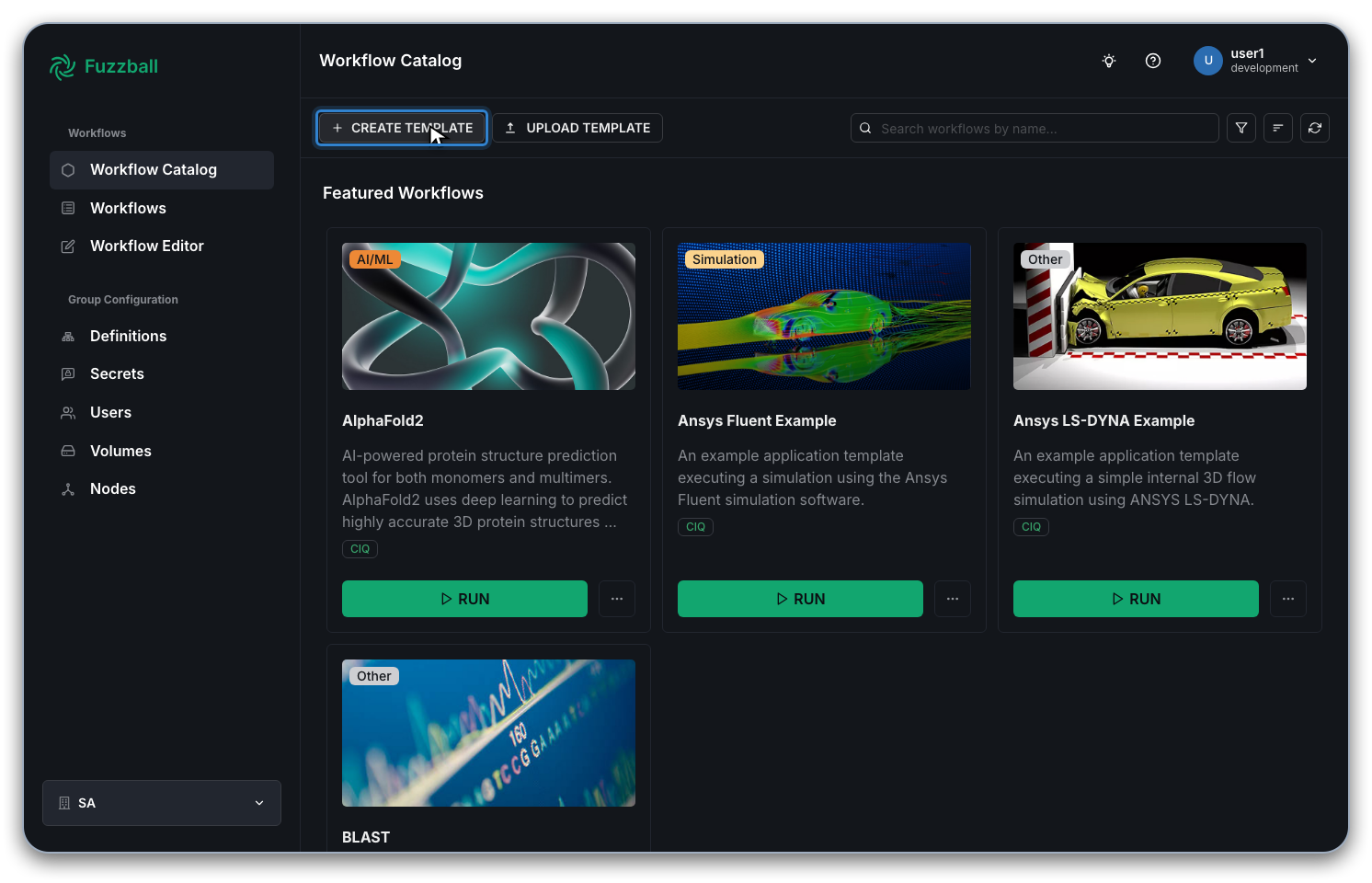
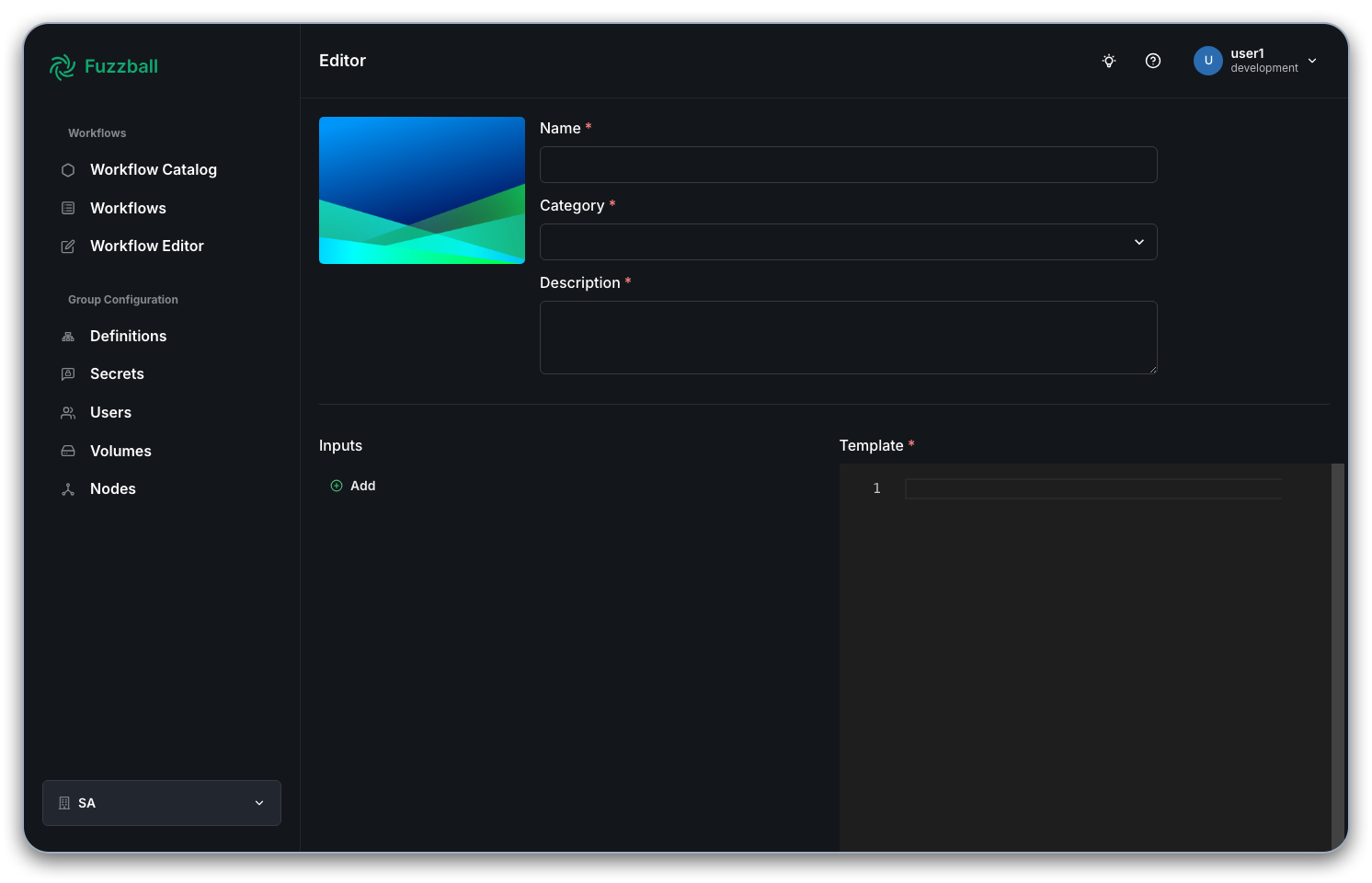
From here you can populate all of the fields. The Name, Category, and Description fields are
self-explanatory. You will need to provide a Template. This is a normal Fuzzfile with variables
inserted using double curly braces and a dot (i.e. {{.VariableName}}).
You might find it easy to create a fuzzfile using the Workflow Editor, and then replace specific values with variables.
The templating feature in the workflow catalog is implemented using Go text/template and slim-sprig. The latter allows you to do more complex operations like creating conditional logic!
Once you have your template specified, you can add inputs for all of your variables. Then you can scroll to the bottom and save your template with the "Save" or "Save & Close" Template button.
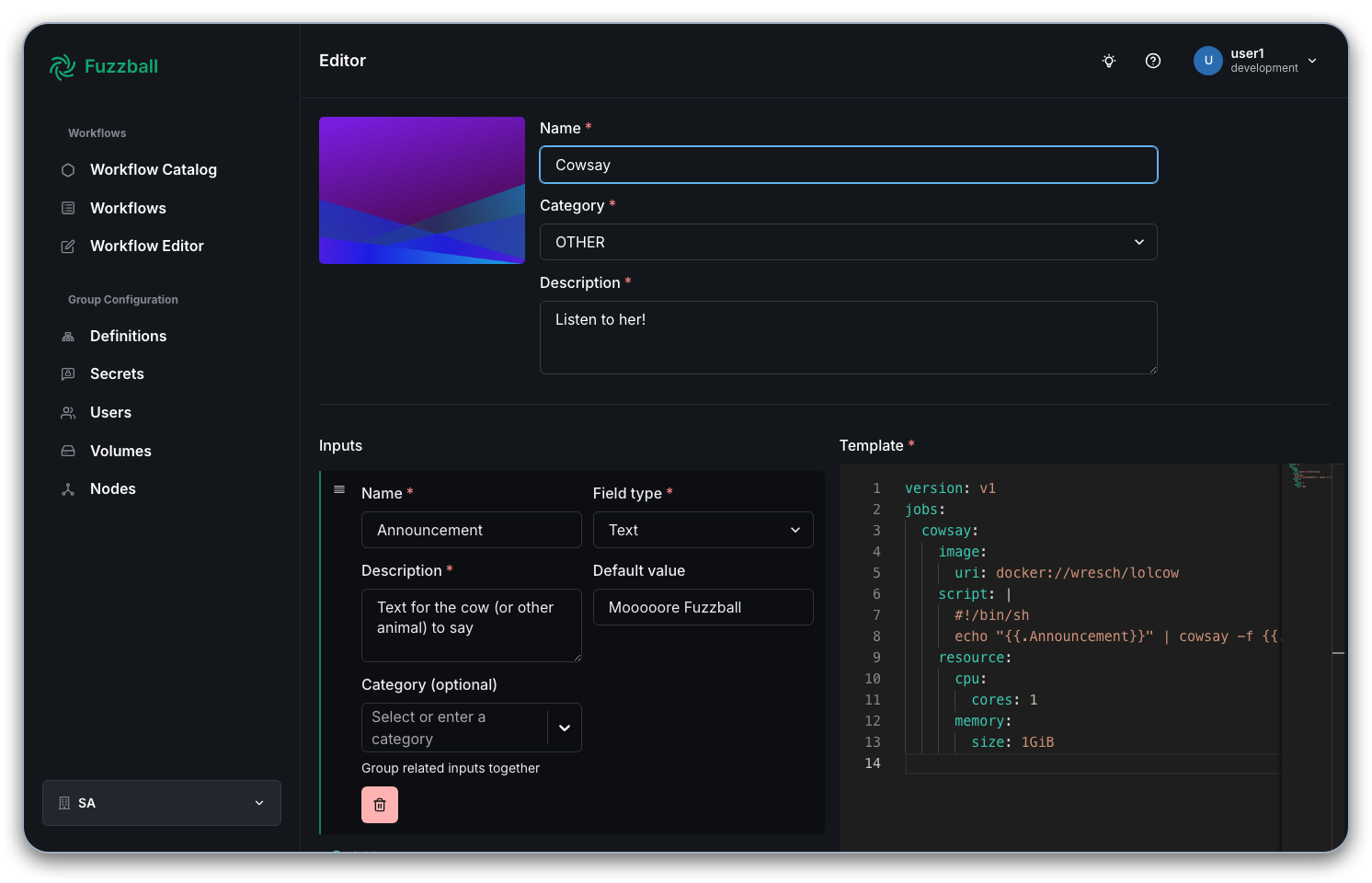
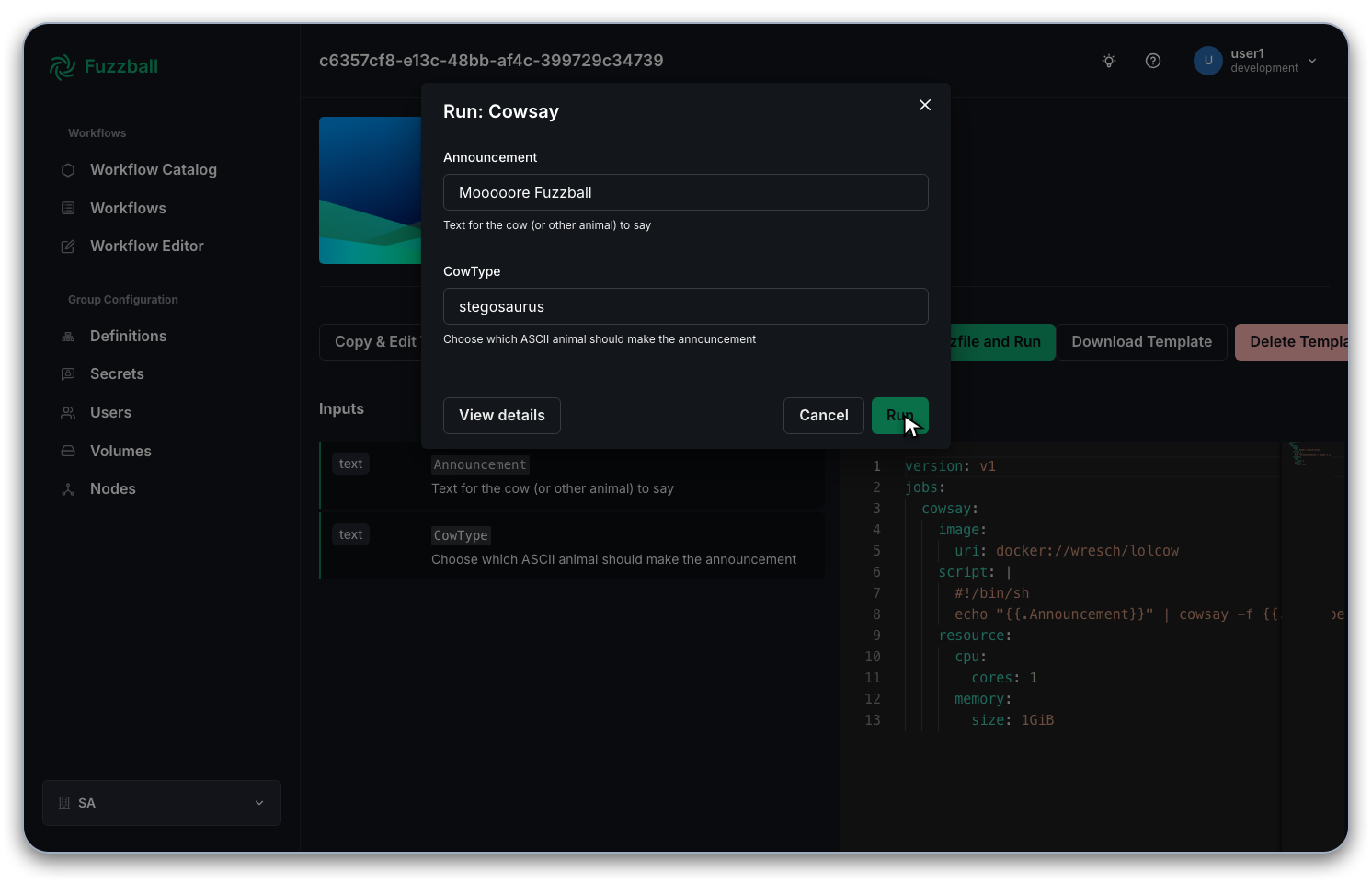
Now you are ready to test your new template! Find it in the workflow catalog and interact with it as described in the previous two sections.
To create a template in the workflow catalog using the CLI, you'll need to manually author both a template file and a values file.
Authoring the Template File
The template file is a YAML file with the syntax of a fuzzfile that also includes
placeholders for values you want users to customize. These placeholders use the syntax
{{.VariableName}}, where VariableName is a unique identifier for each parameterized value.
The templating feature in the workflow catalog is implemented using the Go text/template and slim-sprig. The latter allows you to do more complex operations like creating conditional logic!
Here's an example template file for a simple "Hello World" workflow:
version: v4
jobs:
  helloworld:
    image:
      uri: {{.ContainerUri}}
    policy:
      timeout:
        execute: {{.Timeout}}
    script: |
      #!/bin/sh
      {{.Script}}
    resource:
      cpu:
        cores: {{.Cores}}
        affinity: NUMA
      memory:
        size: {{.Memory}}
It is important to provide users with additional details about the possible values for these variables and their purposes. This ensures clarity and helps prevent errors when rendering the fuzzfile. The values file serves this purpose.
Authoring the Values File
The values file must define all variables used in your template. Here is an example corresponding to the "Hello World" template above:
values:
  - name: ContainerUri
    display_name: URI for the docker image to use for this workflow
    string_value: docker://alpine:latest
  - name: Timeout
    display_name: How long to wait for the workflow job to complete
    string_value: 5m0s
  - name: Cores
    display_name: How many CPU cores to allocate for the workflow job
    uint_value: 1
  - name: Memory
    display_name: How much memory to allocate for the workflow job
    string_value: 1GiB
  - name: Script
    display_name: Script to run for the 'hello world' job
    string_value: echo "Hello, world! Hostname ${HOSTNAME}"
Each entry for a variable has the following attributes:
- name: The variable name (without the dot prefix used in the template)
- display_name: A user-friendly explanation of what the variable does
- Value type: One of the following, depending on the data type:
string_value: For text values, durations, sizes, etc.uint_value: For unsigned integers (whole numbers)float_value: For decimal numbersbool_value: For true/false values
The value type is indicated by the key name. The value of the key is the default value for the variable.
Template Value Types
When defining template inputs in your values file, you can use several different value types depending on what kind of data the template parameter represents.
Basic Value Types
The basic value types are:
string_value: For text values, durations, sizes, etc.uint_value: For unsigned integers (whole numbers)float_value: For decimal numbersbool_value: For true/false values
These types were shown in the Hello World example earlier in this guide.
Volume Template Values
For workflow templates that include volume definitions, you can use volume_template_value to allow users to select or configure volumes. This type supports v4 volume semantics with structured fields:
values:
  - name: DataVolume
    display_name: Persistent data volume for analysis results
    volume_template_value:
      provisioner_name: shared-nfs
      volume_name: analysis-data
The volume_template_value supports these fields:
provisioner_name: The name of the storage provisioner to use (corresponds to theuse:field in workflow volume definitions)volume_name: The name of a persistent volume (corresponds to thename:field in workflow volume definitions)reference: Legacy v1/v3 volume URI format (volume://<scope>/<class>[/<name>]) — retained for backward compatibility with older catalog data
New templates should use the provisioner_name and volume_name fields rather than the legacy reference format. The structured fields align with v4 volume semantics and provide better clarity. See Storage Volumes and Workflows for details on v4 volume configuration.
Example: Volume Template Value in a Complete Template
Here's an example template that uses volume parameters:
Template file (data-processor-template.yaml):
version: v4

volumes:
  output:
    use: {{.OutputProvisioner}}
    name: {{.OutputVolume}}

jobs:
  process:
    image:
      uri: {{.ContainerUri}}
    mounts:
      /output:
        volume: output
    script: |
      #!/bin/sh
      {{.ProcessingScript}}
    resource:
      cpu:
        cores: {{.Cores}}
        affinity: NUMA
      memory:
        size: {{.Memory}}
Values file (data-processor-values.yaml):
values:
  - name: ContainerUri
    display_name: Container image for data processing
    string_value: docker://alpine:latest
  - name: OutputProvisioner
    display_name: Storage provisioner for output volume
    string_value: shared-nfs
  - name: OutputVolume
    display_name: Name of persistent output volume
    string_value: my-results
  - name: Cores
    display_name: CPU cores to allocate
    uint_value: 2
  - name: Memory
    display_name: Memory to allocate
    string_value: 4GiB
  - name: ProcessingScript
    display_name: Processing script to execute
    string_value: |
      echo "Processing data..."
      date > /output/timestamp.txt
For workflows that need persistent volumes, remember that the volume must already exist before the workflow runs. Users can create persistent volumes via the CLI (fuzzball volume create), web UI, or API. See Storage Volumes and Workflows for details.
Legacy Volume References
If you are maintaining older catalog templates that use the v1/v3 volume URI format, you may see:
values:
  - name: DataVolume
    display_name: Data volume
    volume_template_value:
      reference: volume://group/shared/analysis-data
This legacy reference format continues to work for backward compatibility, but new templates should use the structured provisioner_name and volume_name fields instead.
Adding the Template to the Catalog
Once you've created both files, add the template to the workflow catalog using the create
command:
$ fuzzball workflow catalog create <TEMPLATE_FILE> <VALUES_FILE> [flags]
For example:
$ fuzzball workflow catalog create hello-world-template.yaml hello-world-values.yaml \
  --name "Hello World" \
  --description "A simple Hello World example" \
  --category "EXAMPLES"

Application created with ID: 00000000-0000-0000-0000-000000000000
Find your template listed amongst the other templates in the workflow catalog by using the
fuzzball workflow catalog list command.