Admin Section
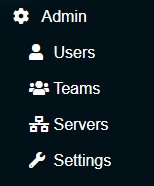
The Admin section of the user interface allows the Ascender Ledger Pro Administrator to control the general behavior of the system. It has four main sections that include:
- Users
- Teams
- Servers
- Settings
Each of the sections will be described below.
Users
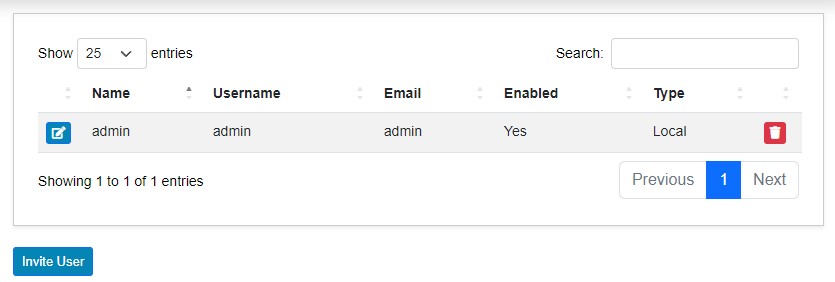
This menu allows for the administration of users within Ascender Ledger Pro. From this menu, a user can be edited via the Edit button or deleted via the Trash Can button.
A user can be invited via email by clicking the Invite User button. Note that both SAML and LDAP users do not have to receive an invitation, they simply need to be able to login with their credentials. However, in the case of SAML Authentication, they will be registered automatically with minimal permissions, and with LDAP Authentication their permissions will depend on the mapping of LDAP User Groups to Ascender Ledger Pro Teams.
Editing a User
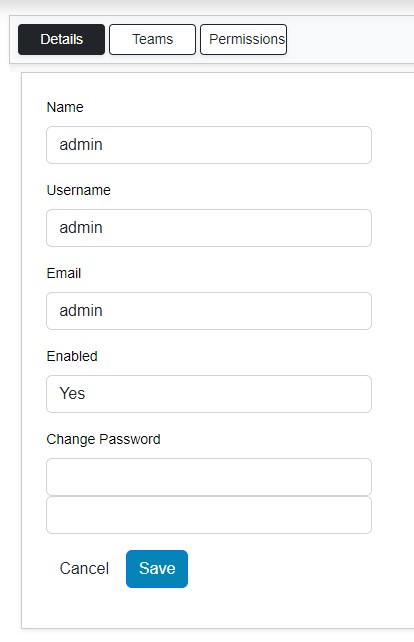
Once the Edit button is clicked by a username, you are presented with the Edit User screen. From here, you can edit the following:
- Name
- Username
- Email address
- Enabled status
- Change the password
Administrators can change passwords for Local Accounts only. Users can change some settings when they edit their profile such as their Name and Password. It is not possible to change the User Type (SAML, LDAP, Local).
Teams
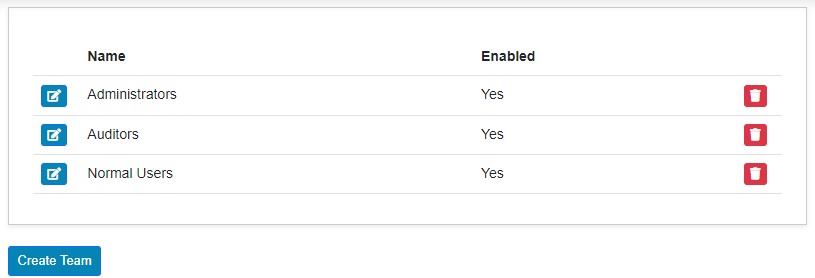
Teams in Ascender Ledger Pro are a way to group Users and to establish default permissions for Users in those Groups. Permissions that are applied to a team are inherited by the members added to the team. If you set the LDAP Group for a Team, then those permissions will be automatically set for the Users of that LDAP Group when they login.
From the Teams menu, an admin can view, edit, delete, and add new teams.
Edit Teams
When the Edit button is clicked beside a team name, you are presented with three tabs: Details, Users, and Permissions.
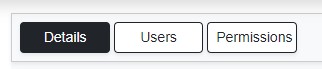
Details Tab
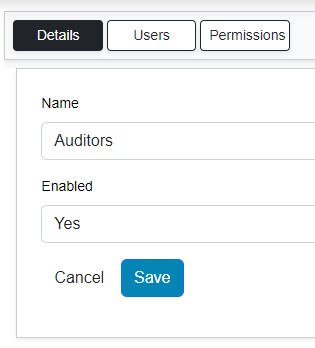
The Details tab allows for the modification of:
- Name
- Enabled status
- LDAP Group DN
The LDAP information only applies when a user is a member of an LDAP Group and logs into Ascender Ledger Pro using LDAP. Team Group mapping is performed via the external LDAP server. If the login User is a member of the LDAP Group DN, they will automatically be granted the permissions of this Team every time they login.
Users Tab
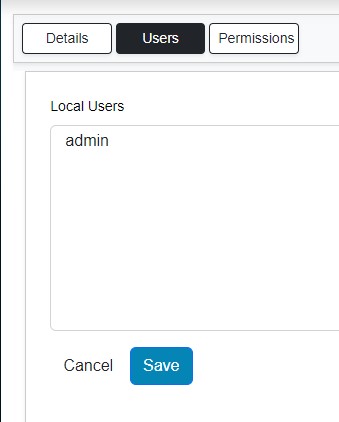
The Users tab allows for adding or removing Users from the Team, whether they are local, LDAP, or SAML Users.
Permissions Tab
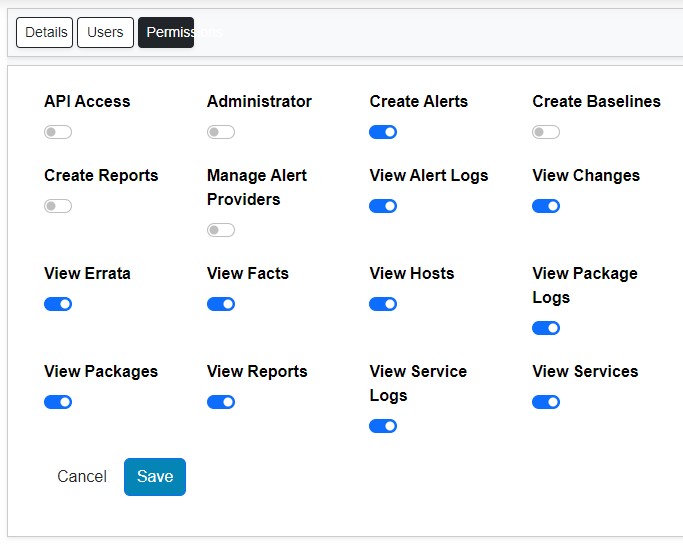
The Permissions tab allows for setting the permissions for the Team. These permissions are identical to those you would find when editing a User.
Servers
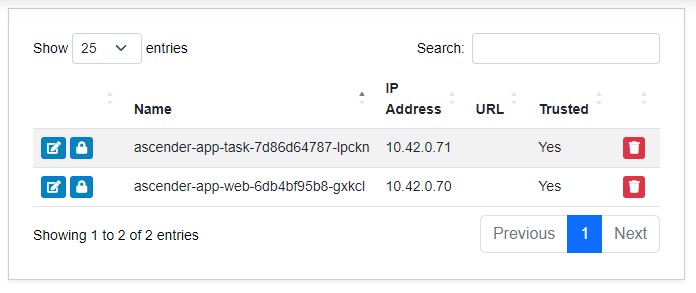
When a new Ascender or AWX derivative server begins sending log messages to Ascender Ledger Pro, an entry is automatically created in the Servers section. You can view the following details:
- The Name of the server. This is the Ascender servers Unique ID (UUID)
- The IP Address of the Ascender Server
- The URL of the Ascender Server
- The number changes logged by the server
- The last time that the server sent data to Ledger
The Edit button, when pushed, gives an administrator the ability to modify the Ascender server's URL.
If for some reason the Ascender URL is not resolvable, Host Change links may be broken. So, in that case, make sure you have updated this Ascender Server URL to be a publicly reachable URL.
Settings
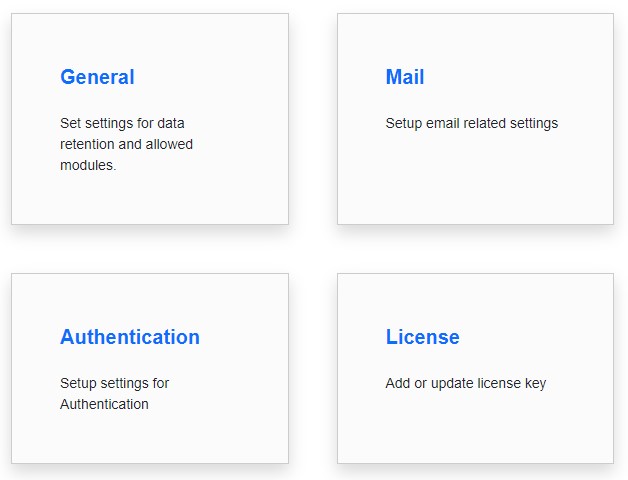
Settings has four submenus: General, Mail, Authentication, and License.
General
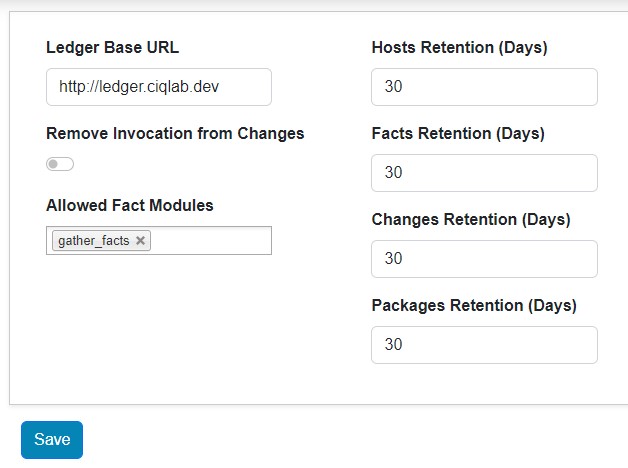
In the General settings, you can:
- Set or modify the Ascender Ledger Pro base URL.
- Enable or disable the Remove Invocation from Changes option, which removes invocation data that could potentially expose sensitive information when sent to Ascender Ledger Pro from Ascender.
- Set the Allowed Fact modules. By default, this includes both
set_cmdbandgather_facts. - Require Token Authorization to enable a higher level of security to access Ascender Ledger Pro from an external source.
- Create or Renew the Ascender Ledger Pro bearer token.
- Modify additional retention settings (all set to 60 days by default) for:
- Hosts
- Facts
- Changes
- Packages
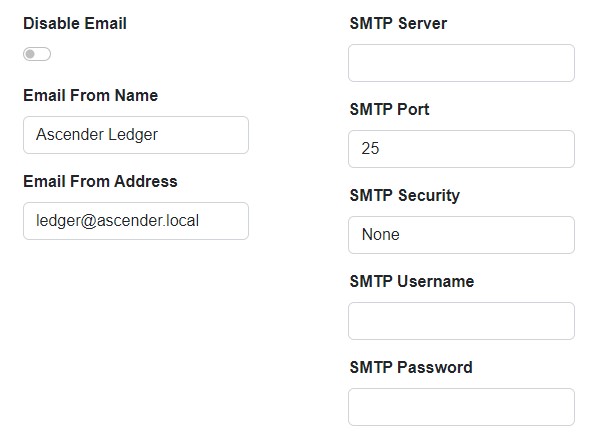
Email settings can be configured from this menu. This includes:
- Disabling email sending
- Email from name
- Email from address
- SMTP server connection information
Ascender Ledger Pro supports the Simple Mail Transfer Protocol including both TLS, SSL, and No encryption.
Authentication
Ascender Ledger Pro currently provides three levels of Authentication. They include:
- Local Authentication
- LDAP Authentication
- SAML Authentication
The Local Authentication is designed for smaller installs and includes the default user administrator for the system. When you first login, you will be logged in as a Local user. If for some reason your Ascender Ledger Pro will be internet facing, you should strongly consider renaming the 'admin' account to prevent brute force password attacks on this commonly used username.
The next two Authentication modes are described below:
LDAP Authentication
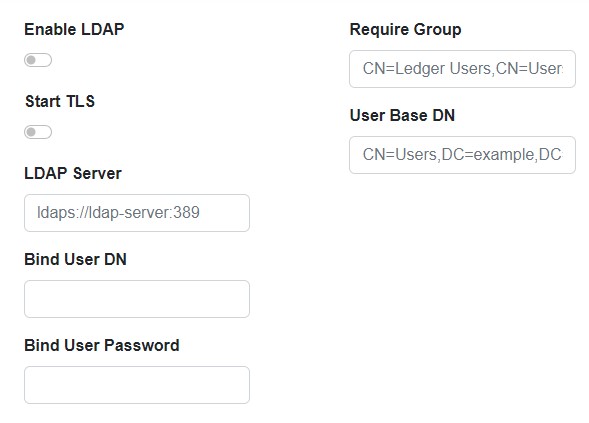
This section allows for the configuration of LDAP servers, which is most often utilized via Windows Active Directory (as it's LDAP compliant). In addition Ascender Ledger Pro supports Single SignOn to your corporation's Single SignOn provider using the SAML protocol.
When using LDAP, the following holds true:
- The Require Group option allows for the specification of an LDAP User Group that Users must be a member of to connect to Ascender Ledger Pro.
- The Base DN specifies the Base DN to use for all LDAP searches.
- The User DN specifies where in the LDAP server to start searching for users.
When creating a template for users, you would use the special <username> tag
which will be replaced by the Users desired Login name at the time of login.
When using Active Directory, you can simply use <username> and when using
other directory providers, follow the normal uid=<username>,cn=users,...
syntax.
SAML Authentication
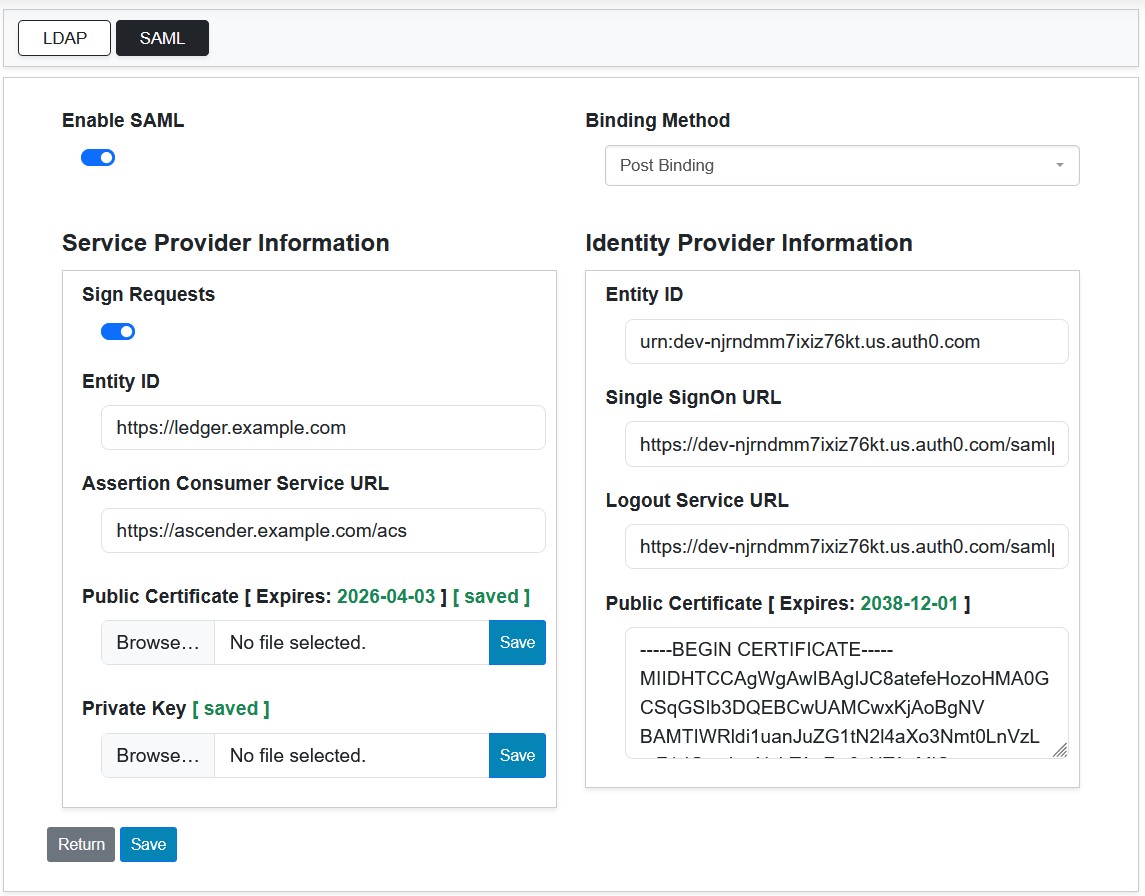
With SAML Authentication, Ascender Ledger Pro acts as a Service Provider and delegates sign-in to your organization's identity provider. You register an application for Ascender Ledger Pro in your identity provider, then enter the values it gives you on this tab.
For the full procedure, including the attribute names Ascender Ledger Pro recognizes, group to team mapping, and troubleshooting, see SAML Authentication.
License
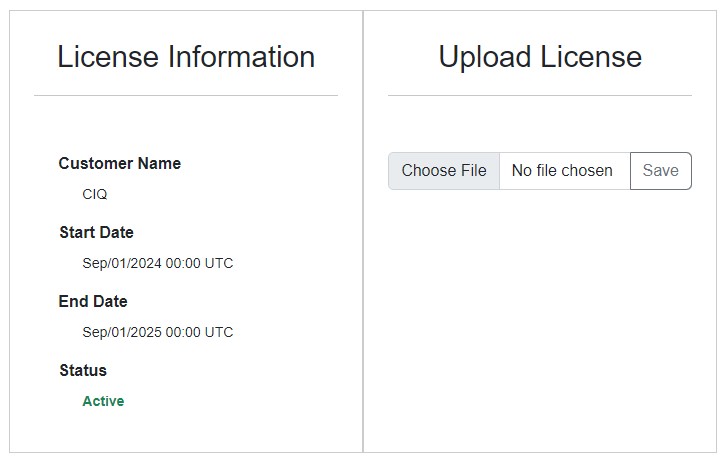
This section allows for reviewing and uploading your license file for Ascender Ledger Pro. You will receive a warning within 30 days of this licenses expiration.
In the License settings, you can view:
- Customer Name
- Start Date of license
- End Date of license
- Current license status
An administrator also has the ability to locate a license file and save it to the system.